Tour
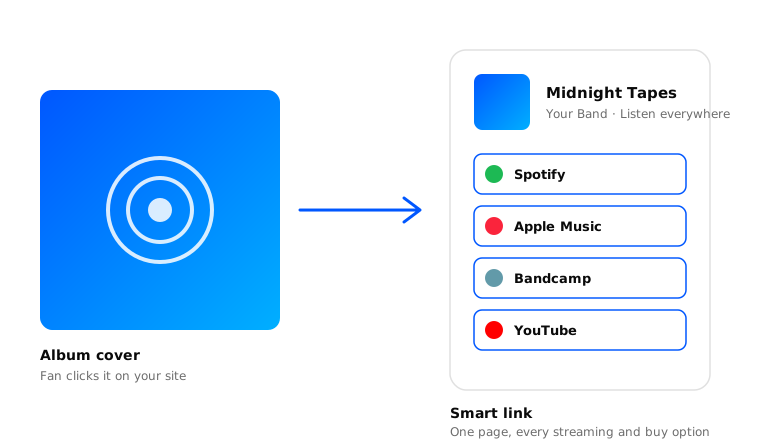
Every show in one place, synced from Bandsintown and Songkick, with a smart link per date that sends fans to tickets.
Every show, every festival, every one-off - pulled in from Bandsintown, Songkick, and the rest, and kept current nightly. Each date gets its own smart link that sends fans to tickets on whichever platform they use.
How syncing works
Finding events on your platforms
Once you connect a tour platform, we pull in every event you have listed. After that, we sync nightly - new dates show up, past ones fall off.
Matching events to your site
When a new event appears, we try to match it to one already on your site by date and name. No match means a new event gets created.
Filling in the details
Different platforms know different things about the same show. First platform with the info wins.
Reviewing your events
Venues, times, and lineups change. A pass through your events when something syncs is smart.
- Image - Event poster or promo image. High resolution.
- Name - Event title, formatted the same way it appears on platforms.
- URL slug - The unique part of the event’s URL, e.g.
/tour/your-event. - Type - Concert, Festival, etc.
- Date - The scheduled start date.
- Time - The scheduled start time. Use the venue’s local time for in-person events and your own timezone for virtual ones - we’ll convert for each fan.
- Venue name - Venue where the event is happening, if applicable.
- Venue city - City the venue is in.
- Venue region - State/province/region.
- Venue country - Country.
- Info - Description, lineup, support acts, age restrictions, anything worth knowing.
- Platforms - The Platforms where fans can grab tickets.
Reordering your events
Default is by date. Drag-to-reorder is there if you need it:
- Visit Tour and select Edit in the top right.
- Drag the handle into place.
- Hit Save.
Sharing an event
A smart link that sends fans to tickets on their platform of choice:
- Visit Tour and find the event.
- Select Share from the top right, then Copy.
- Post it in the show announcement.
A direct link to one specific ticket platform:
- Visit Tour and find the event.
- Scroll to Platforms, find the platform, hit the three dots, select Share.
- Copy and share.
More in Share.
Posting an event
Put a show on your homepage - good for an announce, a pre-sale, or a last-call for tickets:
- Visit Tour and find the event.
- Select Post from the top right.
- Add a short message, swap the image if you want, hit Save.
More in Posts.
Editing an event
Edit the event’s details:
- Visit Tour and find the event.
- Select Edit from the top right.
- Make changes and hit Save.
Edit the event’s platforms:
- Visit Tour and find the event.
- Scroll to the Platforms section, find the platform, hit the three dots, select Edit.
- Reassign or add a new one, hit Save.
Hiding an event
Private show? Postponed date you don’t want public yet?
- Visit Tour and find the event.
- Select Hide from the top right.
Unhiding an event
- Visit Tour and hit Filter in the top right.
- Select Hidden from the Status dropdown.
- Select the event and hit Unhide.