Cover image
Your cover image sets the tone. Your logo makes the whole thing feel official. Here's how to handle both.
Your cover image sets the tone. Your logo makes the site feel official. Here’s how to handle both.
Cover image
The cover image is the mood piece. Different templates use it differently, but it’s front and center on the home page every time - the first thing fans see.
Cover image best practices
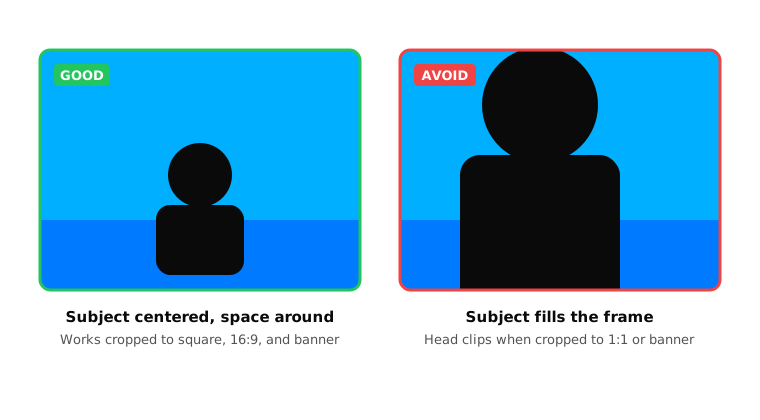
Crop
Center the subject with breathing room on all sides. Templates may crop the edges differently.
Size
As high-quality as you have, up to 10 MB. At least 1500–2000 pixels wide.
Type
Avoid images with baked-in text or logos. If you use one anyway, check it on desktop and mobile - text that reads fine in one can get cropped in the other.
Format
JPG, GIF, or PNG.
Changing your cover image
- Visit Design and select Edit.
- In the Images section, select the button or drag an image into Cover.
- Publish your design.
Logo
Nothing makes a site feel more yours than your own logo in the top left. By default we use your artist name as the home link - a logo replaces it with the real thing.
Logo best practices
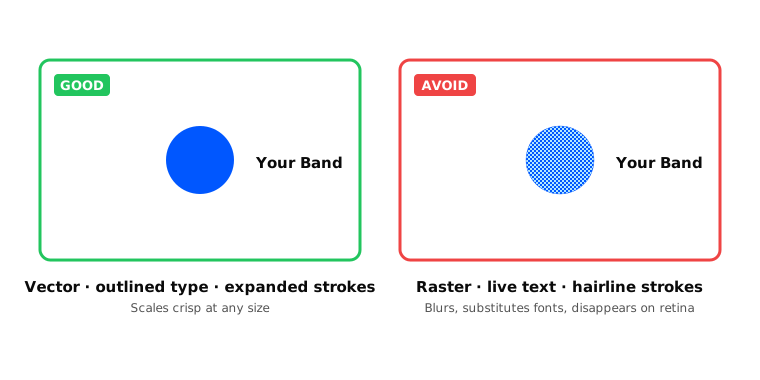
Crop
Trim off the white space around the logo.
Color
Use black and white so the site can recolor it cleanly.
Strokes
Expand strokes to paths (Convert to Outlines in most vector apps).
Fonts
Convert type to outlines - embedded fonts don’t always render right in every browser.
Images
No raster images inside the SVG. Vectors only.
Format
SVG only. Vectors scale and recolor cleanly; rasters don’t.
Don’t have an SVG? Your designer probably does - that’s usually the fastest path. If you’ve only got an .ai or .eps file, those can be converted, but it’s finicky without the right software. Ask your designer.
Changing your logo
- Visit Design and select Edit.
- In the Images section, select the button or drag your logo into Logo.
- Publish your design.