Music
Every release, on every platform, on one page - kept current automatically. Plus a smart link per album that sends fans to whatever app they prefer.
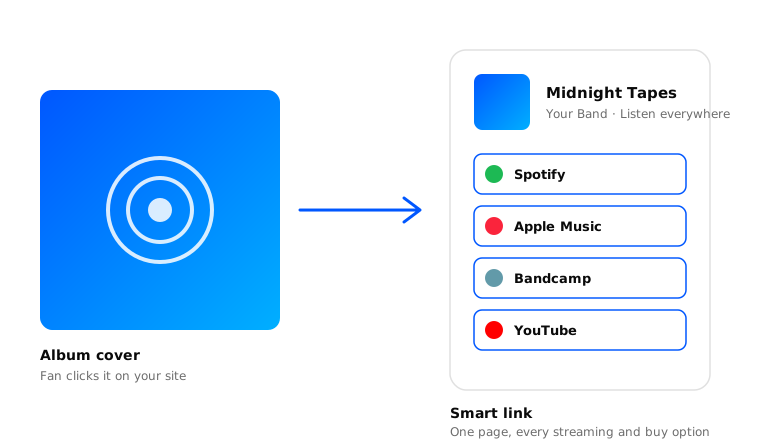
Every release, on every platform, on one page - kept current automatically. Each album also gets a smart link so one URL sends fans to Spotify, Apple Music, Bandcamp, or whatever they actually use.
How syncing works
Finding albums on your platforms
Once you connect a music platform, we pull in every album you have there. After that, we sync nightly - new albums get added, deleted ones get removed.
Matching albums to your site
When a new album shows up on a platform, we try to match it to one that’s already on your site by UPC, name, and release date. If nothing matches, we create a new album.
Filling in the details
Every platform knows slightly different things about the same album. We take the first good answer from whichever platform provides it.
Reviewing your music
Platform metadata is fine, but rarely perfect. A pass through your albums when something syncs is worth the minute or two.
- Image - Cover artwork. Square, high resolution.
- Name - Album title. Match the formatting on platforms exactly.
- URL slug - The unique part of the album’s URL, e.g.
/music/your-album. - Type - Album, EP, Single, etc.
- Tracks - Number of tracks.
- Duration - Total runtime.
- Release date - When it came out.
- UPC - Universal Product Code. Critical for matching across services.
- Info - Description, credits, lyrics, anything else worth sharing.
- Products - The physical versions in your Merch catalog.
- Platforms - The Platforms where fans can listen.
Reordering your music
Default order is by release date. Manual reordering works too:
- Visit Music and select Edit in the top right.
- Drag the handle on any album into place.
- Hit Save.
Sharing an album
A smart link that lets fans pick their player of choice:
- Visit Music and find the album.
- Select Share from the top right, then Copy to copy the link.
- Drop it in bios, stories, newsletters, ads - anywhere.
A direct link to the album on one specific platform:
- Visit Music and find the album.
- Scroll to Platforms, find the platform, hit the three dots, select Share.
- Copy and share the link.
More in Share.
Posting an album
Push an album to the top of your homepage, link-in-bio style:
- Visit Music and find the album.
- Select Post from the top right.
- Add a short message, swap the image if you want, hit Save.
More in Posts.
Editing an album
Edit the album’s details:
- Visit Music and find the album.
- Select Edit from the top right.
- Make changes and hit Save.
Edit the album’s products:
- Visit Merch and find the product.
- Select Edit from the top right.
- Change its Album assignment and hit Save.
Edit the album’s platforms:
- Visit Music and find the album.
- Scroll to the Platforms section, find the platform, hit the three dots, select Edit.
- Reassign the platform to a different album (or add a new one) and hit Save.
Hiding an album
Keep an album in your catalog but off the site:
- Visit Music and find the album.
- Select Hide from the top right.
Unhiding an album
- Visit Music and hit Filter in the top right.
- Select Hidden from the Status dropdown.
- Select the album and hit Unhide in the top right.