Campaigns
Email campaigns that match your site's design by default. Build, preview, send, track.
Email your fans from the same place you manage everything else. Campaigns pick up your site’s colors and fonts by default, so they don’t look like they came from a different company.
Creating a campaign
- Visit Campaigns and hit New in the top right.
- Select Add subject and write a subject line - short and specific beats clever and vague.
- Add, edit, and reorder blocks to build the body.
Previewing a campaign
Send yourself a test before you send it to everyone:
- Visit Campaigns and select or create a campaign.
- Hit Preview in the bottom right.
- Pick recipients from your team and hit Send.
How the preview works
- Block-based campaigns (default): The preview uses the same template and blocks you edit. The preview iframe is server-rendered HTML that matches what fans will receive.
- Legacy plain-HTML body: Campaigns without blocks and only a single HTML body merge your content into the email template (header/footer) for preview. Either way, the preview updates as you edit.
Sending a campaign
When you’re happy and you’ve read it three times:
- Visit Campaigns and select the campaign.
- Hit Send in the bottom right.
- Pick your recipients and hit Send.
Tracking a campaign
Real-time stats roll in once the send kicks off. Keep them in the healthy range - it builds email reputation and keeps you clear of our sending requirements.
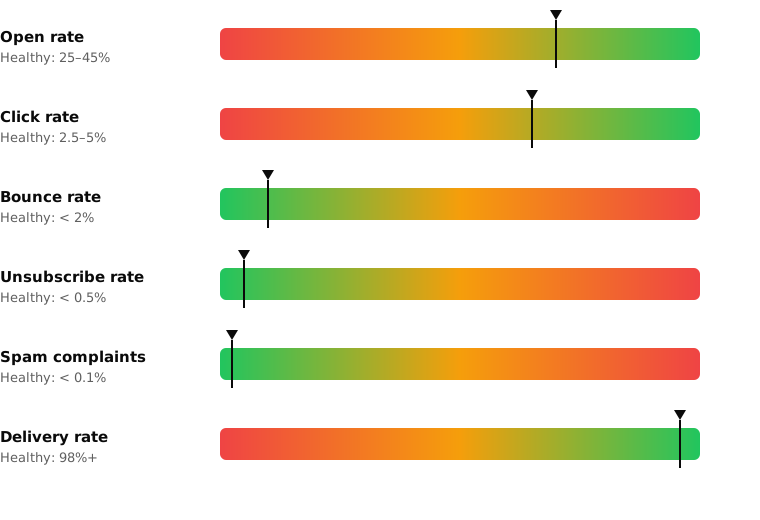
Open rate
Percentage of contacts who opened at least once.
- Healthy: > 20%
- Unhealthy: 10–20%
- Critical: < 10%
Click rate
Percentage who clicked a link.
- Healthy: > 2%
- Unhealthy: 1–2%
- Critical: < 1%
Delivery rate
Percentage of emails that landed.
- Healthy: > 95%
- Unhealthy: 90–95%
- Critical: < 90%
Bounce rate
Percentage that hard-bounced.
- Healthy: < 5%
- Unhealthy: 5–10%
- Critical: > 10%
Unsubscribe rate
Percentage who unsubscribed from this one.
- Healthy: < 0.5%
- Unhealthy: 0.5–1%
- Critical: > 1%
Spam rate
Percentage who marked it as spam.
- Healthy: < 0.05%
- Unhealthy: 0.05–0.1%
- Critical: > 0.1%
With campaign tracking disabled, you won’t see opens and clicks.
Sharing a campaign
Want to show the campaign to fans who aren’t on your list? Use a hidden share link:
- Visit Campaigns and find the campaign.
- Select Share from the top right, then Copy.
- Drop the link anywhere.
Posting a campaign
Put the campaign on your homepage:
- Visit Campaigns and find the campaign.
- Select Post from the top right.
- Add an image, a short message, Save.
Manage all posts in Posts.
Copying a campaign
Rinse and repeat a format that worked:
- Visit Campaigns and find the campaign.
- Select the three dots next to it, then Copy.
- Update the subject and body so it’s actually different.
Deleting a campaign
- Visit Campaigns and find the campaign.
- Select the three dots next to it, then Delete.
- Confirm.