Header
Reorder, rename, or hide the links in your site's header to control what fans see first.
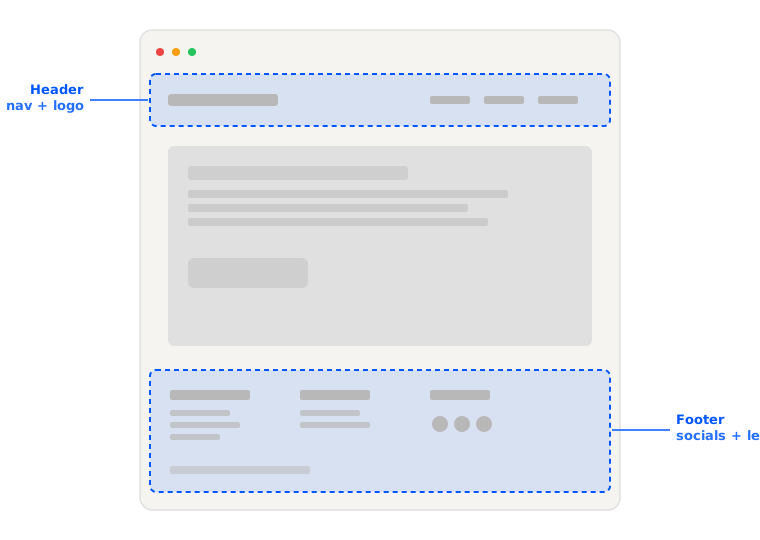
Header
The header is the shortcut menu - what fans click first. Decide what belongs there, in what order, under what name.
Reordering header links
- Visit Design and select Edit.
- In the Header section, drag the handle of any link into the desired order.
- Publish your design.
Hiding or unhiding header links
- Visit Design and select Edit.
- In the Header section, select the three dots next to the link and choose Hide or Unhide.
- Publish your design.
Hiding a page hides everything under it - on the site and in your Dashboard. Hide Music and every album page goes with it.
Renaming header links
- Visit Design and select Edit.
- In the Header section, select the three dots next to the link and Edit.
- Make your changes and hit Save.
- Publish your design.
Keep names short, honest to what the page is, and easy on the eyes in your chosen template.