Contacts
Manage your email list, import from other services, and track how fans are engaging with your campaigns. Your audience data is yours.
Your email list lives here - fans who’ve opted in from your site, anyone you’ve imported, and the engagement history for every one of them. Your audience data is yours; export it whenever.
Subscribing contacts
Every Pro site has a Subscribe for updates button. Fans drop their email (and optionally their location), and from there you can send them campaigns or export them elsewhere.
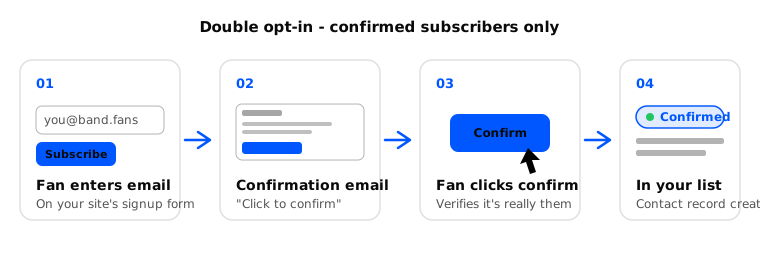
To comply with international email law and cut off spam and fake addresses, every subscriber from your site goes through double opt-in before they land in your contacts. If you’ve set up your newsletter, the confirmation email comes from your Sending email. Otherwise it comes from a Bandweb noreply address.
Importing contacts
We’ve made it easy to import contacts you’ve exported from services like Mailchimp, Squarespace, Shopify, Big Cartel, Gumroad, and more.
Only import contacts who have:
- Given you permission to email them.
- Subscribed or been in contact in the last few months.
- Had a clear way to unsubscribe previously.
Ignore these rules and you trash your email reputation, fail our email sending requirements, and annoy actual humans. Don’t do it.
If your list meets the criteria:
- Visit Contacts and select Import.
- Review and agree to the rules.
- Pick multiple contacts or a single one.
- For multiple: select your CSV file, map the columns, and Import.
- For a single: enter email, location, and Save.
You’ll see the import progress and a breakdown of how many contacts came in cleanly.
Tracking contacts
With campaign tracking on, every contact gets a score based on how they engage.
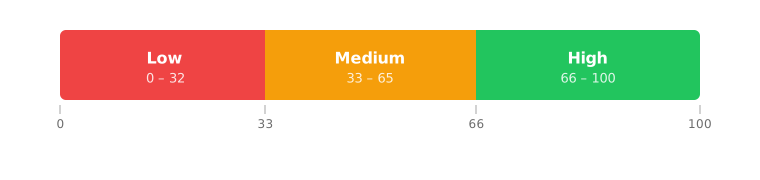
High (66–100)
Either a brand-new subscriber or someone who consistently opens and clicks.
Medium (33–65)
Opens or clicks sometimes, not reliably. Keep an eye on them.
Low (0–33)
Rarely opens or clicks. Consider deleting them to protect your email reputation.
None (n/a)
Either a newly-imported contact who hasn’t been sent anything yet, or the default when you have tracking disabled.
Editing contacts
- Visit Contacts and select Filter in the top right.
- Enter their current email in Search and hit Done.
- Select the three dots next to the contact and then Edit.
- Update and Save.
Exporting contacts
Your list, your data, anytime:
- Visit Contacts and apply any Filters you want.
- Select the three dots next to the Contacts count and choose Export.
- The filtered list downloads as a CSV.
Deleting contacts
Cleaning the list is good hygiene. Pruning unengaged contacts protects your email reputation and can shave your plan cost.
- Visit Contacts and apply any Filters you want.
- Select the three dots next to the Contacts count and choose Delete.
- Confirm. Gone.