Guide // Your website
What should a musician website builder sync from Spotify?
Choosing a website builder for musicians with Spotify? Compare links, embeds and catalogue syncing, then check what happens when your next release goes live.
Dean Rud, Meter Records
Playing in bands since 1996. Running a record label since 1998.
Updated Nov 25, 2026
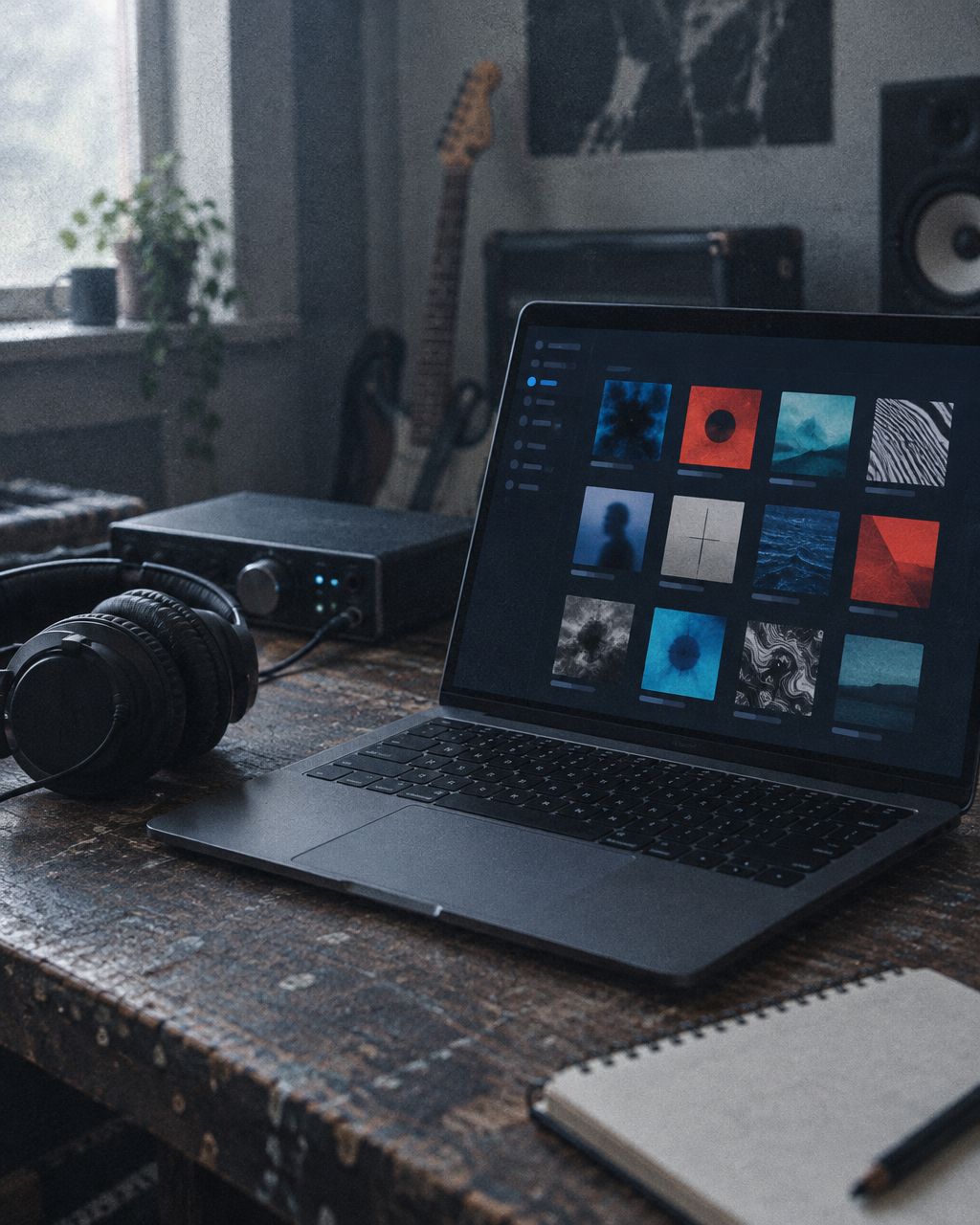
Choose a website builder that imports your Spotify releases and checks for new ones if you want less website upkeep. A Spotify link sends listeners elsewhere; an embedded player puts listening on a page; catalogue syncing maintains release information on your website. In 2026, ask which of those jobs the builder actually does before choosing a template.
TL;DR
- A website builder for musicians with Spotify should explain exactly what it imports and updates.
- Spotify links, embedded players and catalogue syncing do different jobs.
- Bandweb suits musicians who want connected releases carried into their website without duplicate data entry.
- Check the artist profile, release artwork and refresh schedule before sharing your site.
Why this matters
Release day already comes with enough tabs open. Copying artwork, titles and listening links into another website is work you can avoid when your builder supports the right connection.
But the phrase Spotify integration does not tell you what happens next. If you are still comparing whole platforms, start with the musician website builder shortlist. This guide covers the narrower question: how your release catalogue gets onto the site and stays useful after the first import.
What should a musician website builder sync from Spotify?
For a release-led website, check whether the builder imports the catalogue, artwork and release dates, then detects later releases without asking you to rebuild the music page. Treat playback and release-page maintenance as separate requirements.
| Connection type | Best for | What it does | What you still need to check |
|---|---|---|---|
| Spotify link | A simple route to your profile or release | Opens a destination on Spotify | Whether the destination is still the one you want to promote |
| Spotify embedded player | Listening within a website page | Displays Spotify's player for the selected content | Placement, phone layout and whether you chose a specific release or another destination |
| Synced release catalogue | Keeping website release information current | Imports supported release details into the builder | Correct artist, included releases, refresh timing and missing information |
None of these approaches is automatically wrong. A single-release landing page can work with a direct link. A musician with an expanding catalogue has a different maintenance problem.
Choose the connection for the task, not the badge on the integrations page. If the sales page says only that Spotify is supported, ask what changes on your website when you put out the next single.
A link is a destination, not a catalogue
A direct Spotify link is straightforward. You choose the artist, album or track destination and place it behind a useful label.
The trade-off is what sits around it. A link does not, by itself, create release artwork, an album description or a page for the new record inside your builder. You can maintain those manually, but recognise that as a separate job.
Best for: a deliberately simple page where sending someone to Spotify is the main action. Avoid making every button say “Listen” when several releases appear together; name the release or service so the destination is clear.
An embed is a listening component
Spotify's official embedded-player guidance describes putting an artist profile, album, song, playlist or podcast player on a website. The desktop app provides the sharing route through Share and Embed. Those instructions were checked in November 2026.
The selected content matters. An album embed and an artist-profile embed are not interchangeable editorial choices. Ask what the visitor should hear, then choose the appropriate destination and test it on your actual page.
Best for: a page where you want a visible Spotify listening option. An embed is not evidence that the builder also creates and maintains individual release pages.
A synced catalogue maintains website information
Catalogue syncing addresses the copying rather than just the listening. A builder imports the fields it supports and checks its connected source for later changes.
For example, Bandweb's auto-sync feature documents importing albums, EPs and singles, including artwork and release dates. Its help documentation describes automatic overnight updates and an on-demand manual sync available once per hour.
Best for: musicians who want releases represented on their website without entering the same details again. The limitation is equally important: supported fields and refresh timing still define what reaches the page. Do not turn “automatic” into a promise of instant publication.
Check the connection with your own artist profile
A convincing demo uses your catalogue, not a sample artist with perfectly tidy data. Before committing to a builder in 2026, run this practical acceptance test. These are suggested checks, not performance benchmarks.
1. Match the artist before importing
Use the exact artist-profile address rather than trusting the name alone. Check the artwork and releases against your actual catalogue before carrying on with the design.
If something belongs to another artist, stop there. Recolouring the page will not fix the source connection, and manually hiding each wrong release is not a substitute for identifying the right profile.
Look for:
- The expected artist name and profile image.
- At least one familiar release with the correct cover.
- A profile address you recognise and can open yourself.
2. Inspect three releases, not just the latest one
Choose three releases from your own catalogue: a current single, an older release and a release with a slightly awkward title or credit. This is a suggested test sample, not a claim about how many releases a builder needs.
Open each release on the resulting site. Look for missing artwork, changed punctuation, confusing order and links that point to a different version. Compilation appearances and similarly named releases deserve a closer look when they are part of your catalogue.
A grid of covers can look finished while sending people to the wrong recording. Follow the actual listening action rather than stopping at the preview.
3. Find out when updates happen
Ask for the documented refresh schedule. Then ask whether a manual refresh is available and what restrictions apply to it.
For a 2026 release campaign, a nightly update and an immediate update are different operational promises. Plan your checks around the stated schedule; do not announce that your website is broken simply because an overnight process has not run yet.
Equally, do not wait indefinitely without investigating. If the documented interval has passed, verify the source release, connected profile and available refresh controls before re-entering the whole catalogue by hand.
4. Separate imported details from your own copy
Find out which fields come from the source and which ones you write in the builder. A release title is not the same thing as a paragraph about the recording sessions.
Before adding substantial custom text, ask what a later sync does to edits. Check the documentation or test a harmless field in an unpublished preview; do not assume your preferred behaviour.
You want a clear answer to these questions:
- Which fields are imported?
- Which fields can you edit independently?
- What happens to those edits on the next refresh?
5. Open the page on a phone
Use your own phone, not only the builder's narrow-screen preview. Open the music page, choose a release and follow its listening link.
Check whether artwork makes titles difficult to read, a player extends beyond the screen or another panel covers the action. If the site offers several listening services, make sure the choices remain distinguishable without zooming.
The useful test is a completed journey. Seeing a small version of the desktop layout is not enough.
Why Spotify-connected builders behave differently
A feature list can make several products look equivalent. The practical differences sit underneath the word connected:
- Selected source: an artist catalogue, a particular album and a playlist represent different collections of music.
- Imported fields: artwork, dates, titles and profile information are separate pieces of data. Ask which ones are supported.
- Refresh schedule: an import at setup is not the same as ongoing checking.
- Page structure: a player on a page and a release represented in the site's own layout are different implementations.
- Editorial control: you need to know which imported details you can override and what happens afterwards.
- Other platforms: Spotify support does not establish how shows, merchandise or videos reach the website.
Keep the comparison concrete. Ask a builder to explain one ordinary release cycle: the song becomes available, its details appear on the site, and you decide how prominently to feature it. Which parts happen automatically, and which parts are yours?
What should you still review on release day?
Automation removes repeated entry, not the need to check the finished page. Give yourself a short release-day review rather than a full website rebuild.
Start with the source. If the release is not available at the connected destination, the website connection is not the first place to diagnose the problem. Next, check the builder after its documented refresh and open the public page rather than relying only on an editor preview.
A suggested two-minute review covers the release title, artwork and listening destination. Two minutes is a practical timebox, not a measured guarantee; take longer when something is wrong.
Then review the parts that are editorial decisions:
- Is this the release you want featured on the homepage?
- Does the surrounding copy still describe the current campaign?
- Is an old announcement competing with the new release?
- Can somebody find your contact details without leaving the site?
A synced catalogue can be current while the homepage still tells last month's story. Decide deliberately what gets featured rather than assuming the newest item should always replace everything else.
Does a Spotify connection cover shows and merchandise too?
No. A Spotify connection does not establish support for your tour or shop. Check each content type against the builder's documentation and the platforms you actually maintain.
In Bandweb, the published product documentation describes music, shows and merchandise coming from supported connected platforms. That is useful when you already keep those sources current. It does not mean every field from every platform is imported, or that a correction in one place instantly reaches every other place.
Keep a simple source list for the project: where releases are maintained, where show dates are maintained and where products are sold. You do not need a complicated system. You need to know where to fix a mistake without editing three copies and hoping they stay consistent.
Can a Spotify-connected website replace music distribution?
No. Putting Spotify content on a website is separate from delivering music to Spotify. Choose a website connection to present available music, not as a substitute for your release-delivery process.
Likewise, a working listening link does not guarantee a stream, a follower or a booking. Judge the integration on what it can demonstrate: the right music appears, the information is accurate and the visitor reaches the intended destination.
FAQ
What's the difference between a Spotify embed and catalogue syncing?
A Spotify embed displays a player for selected Spotify content. Catalogue syncing imports supported release information into a website builder and checks for updates according to that builder's process.
What's the best website builder for musicians with Spotify?
Choose based on the job you need done: linking, embedded listening or ongoing catalogue updates. Bandweb is a fit for musicians who want supported release information synced into their website rather than copied manually.
Will my next release appear on my website instantly?
Do not assume instant updates. Check the builder's documented refresh schedule and whether a manual refresh is available before planning your release-day checks.
Can I choose one album instead of my whole artist profile?
Spotify supports embeds for individual albums as well as other content types. Whether a builder lets you select or feature imported releases is a separate feature to verify.
What if the website imports another artist's music?
Check the connected artist-profile address first. Correct the source selection before editing the design or manually working around individual releases.
Do Spotify connections automatically bring in tour dates?
Spotify support alone does not prove that a website builder imports tour dates. Check the supported show sources and their update process separately.
Can I promise fans that an embedded player will work identically on every device?
No. Test the public page on the devices you use and follow the listening action. Do not promise a particular playback experience without checking it.
One last thing
For your next 2026 release, test the second update as carefully as the first import. A setup demo proves the builder can bring information in once; the next genuine release tells you whether the ongoing workflow fits the way you work.
Related guides
Was this guide useful?
Next guide // 10
Music website design: a phone-screen testing checklist →
Music website design mobile checks work best on real phones. Test release links, tickets, press kits and readable layouts before sharing your site.